How to Add Interactive Games to TikTok LIVE Studio

In short
To add an interactive game to TikTok LIVE Studio, open the game on TikArena, enter your TikTok username in the Control Center, press “Play” and copy the game link. In LIVE Studio, use “Add source” to add a source of the type “Link”, set the resolution to 1080 × 1920 and choose “Fit”. Then place your camera on top.
- Add source, type “Link”, paste the game link.
- Turn on custom resolution 1080 × 1920 and “Always keep active”.
- Game as the bottom layer, camera and overlays on top.
- Check everything with the simulator before you go LIVE.
Contents
- What is TikTok LIVE Studio?
- Before you start
- Guide: Adding a game to TikTok LIVE Studio
- Layout: Where does the facecam go?
- Game audio in TikTok LIVE Studio
- Window capture: often smoother than the link source
- Adding console games via a capture card
- The best picture quality in TikTok LIVE Studio
- Troubleshooting
- Using overlays, alerts and text-to-speech as well
- Checklist before your first LIVE
What is TikTok LIVE Studio?
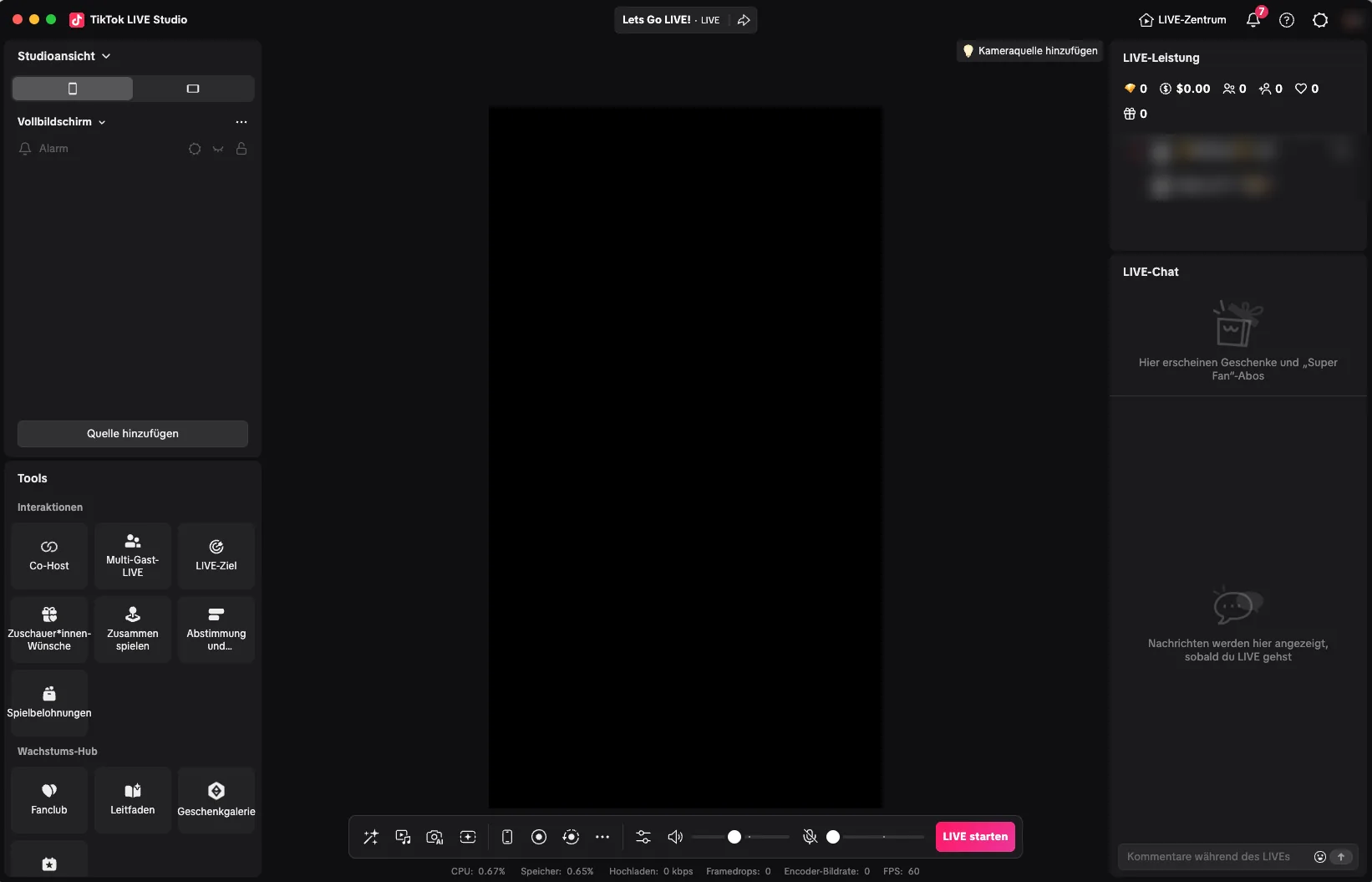
TikTok LIVE Studio is TikTok's free streaming software for Windows. In it, you build your scene from sources, such as your camera, screen, images and links, and go straight to TikTok LIVE. For interactive TikTok Live games, LIVE Studio is the easiest way, because you don't need a stream key. TikTok decides whether your account can use LIVE Studio. LIVE Studio also comes with a few free games of its own, some of them interactive (as of late 2026). You'll find more choice on marketplaces like TikArena or Scrollplay.
Before you start
- TikTok LIVE Studio is installed and you're logged in.
- You have a suitable TikArena plan and have opened a game (“Play now”).
- Your TikTok username is entered in the Control Center.
Guide: Adding a game to TikTok LIVE Studio
- Start the game and enter your TikTok username. Open the game on TikArena with “Play now” and enter your TikTok username in the Control Center on the right.
- Copy the link. Press “Play” in the Control Center. TikArena shows you your game link; copy it.
- Add a link source. In LIVE Studio, click “Add source” at the bottom left and choose “Link”.
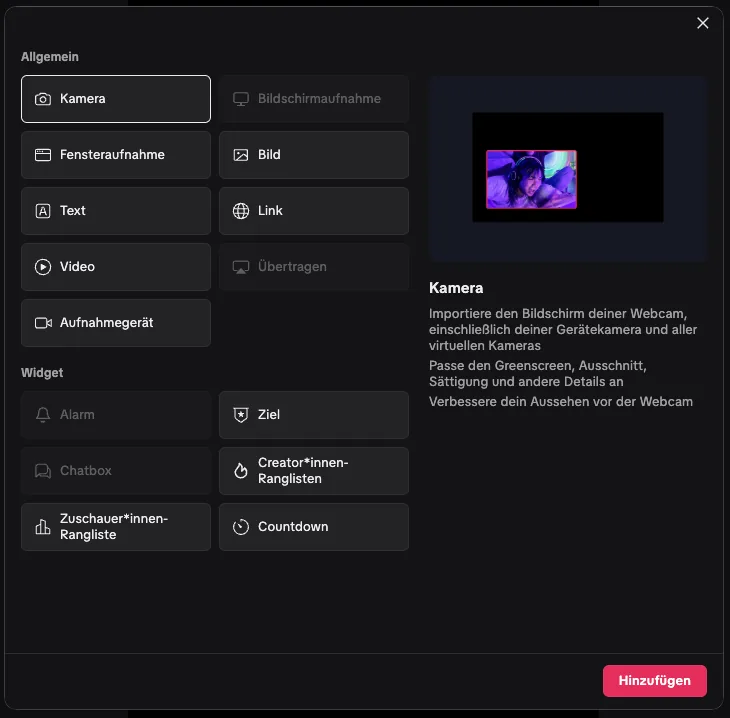
- Paste the link. Paste the copied link into the “Link” field.
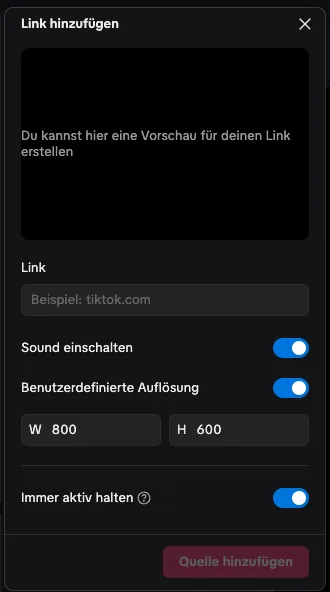
- Set the resolution. Turn on “Custom resolution” and enter width 1080 and height 1920.
- Always keep active. Turn on “Always keep active” so the game keeps running even if the source is briefly covered. Then click “Add source”.
- Fit. Select the new source and choose “Fit” in the toolbar. The game then fills your TikTok canvas.
- Put your camera on top. The game stays at the bottom; camera and overlays go on top, in the free facecam spot from the Control Center.
- Go LIVE and connect. Start your LIVE, press “Connect” under “Connection” in the Control Center and only then start the game. Reconnect every time you switch games.
Layout: Where does the facecam go?
In the Control Center, you choose a layout. It determines where the facecam sits and where the gift tiles and banners appear. The game screen itself always stays the same; only the overlays move. Place your camera in LIVE Studio exactly in the free spot, and nothing will cover the actions.
Game audio in TikTok LIVE Studio
You set game sounds and music in two places: in the Control Center for the game window and stream, and additionally in LIVE Studio on the link source. Speak out loud once while triggering an action. You should hear your voice clearly above the game sound.
Window capture: often smoother than the link source
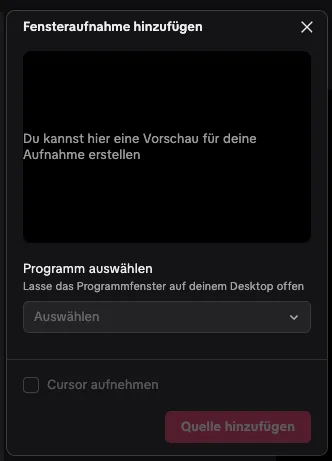
The link source is quick to set up, but it can stutter depending on your internet, your PC's power and the provider's servers. That's why many streamers prefer to capture the browser window or the whole screen. Under “Add source”, choose the “Window capture” tile and, under “Select program”, the browser window with the game. Crop the source with “Crop” so only the game is visible, then choose “Fit”. Keep the window open and don’t minimise it, or the capture loses the picture. Which option suits you better is compared in Window Capture or Link Source. How to arrange sources is in TikTok LIVE Studio: How to Add a Source.
Adding console games via a capture card
You bring games from PlayStation, Xbox or Switch onto your PC with a game capture card. The console connects to the card via HDMI, and the card connects to the computer via USB or internally. In LIVE Studio, choose the capture card as a video source under “Add source”, crop the picture to portrait format and place your camera on top. That doesn't make a console game interactive, though: your viewers watch, but they don't control anything.
The best picture quality in TikTok LIVE Studio
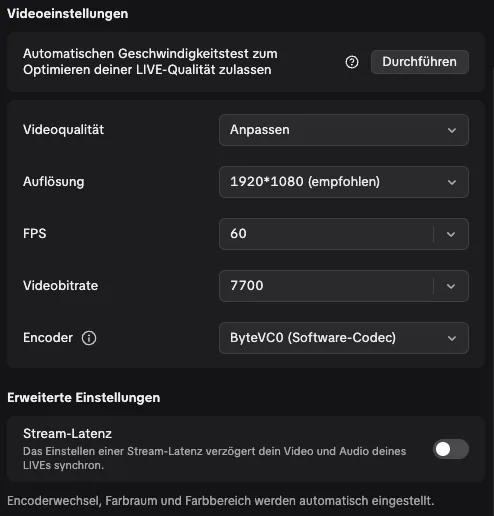
Before going LIVE, open the settings with the gear icon at the top right. In the “Video” section, 1920 × 1080 resolution and the same frame rate as “Stream frame rate” in the Control Center work well (30 FPS, 60 only on powerful computers). The ByteVC0 (software codec) encoder gives the best quality but needs a lot of computing power: if the picture stutters, pick a hardware codec (Apple, NVIDIA, AMD or Intel). If your upload is weaker, lower the video bitrate. The toolbar below the canvas shows CPU, upload and dropped frames, so you can see right away whether your computer keeps up. All values are explained in TikTok LIVE Studio Settings, and Mac tips are in TikTok LIVE Studio on Mac.
Troubleshooting
| Problem | Solution |
|---|---|
| Black or empty screen | Generate the link again in the Control Center and replace it in LIVE Studio. |
| Menus and Control Center in the stream | Wrong link. Use the game link from the Control Center, not the browser address. |
| Gifts aren't coming through | Check that you're LIVE and that your TikTok username is correct (without the @). |
| Choppy picture | Close other browser sources and programs, check the quality in LIVE Studio, or switch to window capture. |
| Link shared or leaked | Tap “Regenerate”. The old link stops working immediately. |
Using overlays, alerts and text-to-speech as well
Your usual tools stay. You add overlays, sound alerts or text-to-speech from overlay providers like Tiktory as another link source. How to do this without a mess is explained in Combining TikTok Live Games with Tiktory, TTS and overlays.
Games for your LIVE


Checklist before your first LIVE
- The game source fills the whole canvas
- Your camera doesn't cover any gift tiles
- A test gift from the simulator shows up in the preview
- Game and mic audio levels are right
- The stream link isn't publicly visible anywhere
Frequently asked questions
How do I add a game to TikTok LIVE Studio?
In LIVE Studio, choose “Add source”, pick the type “Link” and paste the secure stream link from the Control Center.
Why isn't TikTok LIVE Studio showing my game?
Usually it is the wrong link. LIVE Studio only loads https links. Use the link from the “TikTok LIVE Studio” field or generate it again.
Do I need a stream key for TikTok LIVE Studio?
No. In LIVE Studio, you log in with your TikTok account. You only need a stream key for OBS.
Does TikTok LIVE Studio run on a Mac?
We can’t confirm a Mac version. Only check for one on TikTok’s official download page. On a Mac, you go LIVE reliably with OBS, and the games run in the browser there.