TikTok LIVE Studio Settings: Best Video Quality, FPS and Bitrate
In short
For the best picture, go to Settings, Video in TikTok LIVE Studio and set a resolution of 1920 × 1080 at 30 FPS. 60 FPS is only worth it on strong computers with a fast upload. The software encoder gives the sharpest picture, a hardware encoder takes load off the processor. If the picture stutters, lower the bitrate first, then the FPS.
- Starting values: 1920 × 1080, 30 FPS, a bitrate that fits your upload.
- 60 FPS only if CPU and upload have headroom.
- Choose a hardware encoder (NVIDIA, AMD, Intel, Apple) when CPU load is high.
- Run the game and LIVE Studio at the same frame rate.
Contents
Where are the video settings?
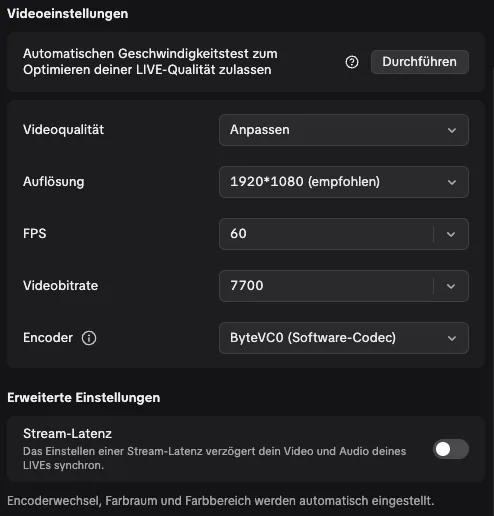
In LIVE Studio, click the gear icon at the top right and open the “Video” section. That’s where you set resolution, frame rate, video bitrate and encoder. The values apply to everything you broadcast, whether game, camera or screen.
Recommended settings
| Setting | Starting value | When to change |
|---|---|---|
| Resolution | 1920 × 1080 | Lower to 1280 × 720 on a weak computer |
| Frame rate | 30 FPS | 60 FPS only for fast action and a strong computer |
| Video bitrate | as high as your upload handles reliably | Lower it if frames drop or the stream cuts out |
| Encoder | ByteVC0 (software) | Switch to hardware when CPU load is high |
These numbers are starting values. Every computer and connection is different. Do a short test before your first LIVE and keep an eye on the stats below the preview.
30 or 60 FPS?
30 FPS is enough for most interactive games. Viewers watch on their phones, and there the difference is barely visible in climbing, building or adventure games. 60 FPS pays off in fast runners and racing games like TrainSurfer if your computer and upload have enough headroom. Important: set “Stream frame rate” in the Control Center to the same frame rate as LIVE Studio. Otherwise the game renders more frames than LIVE Studio sends, which only costs performance.

Encoder: software or hardware?
The ByteVC0 software encoder runs on the processor and gives the best picture at the same bitrate. But it needs a lot of power. If a 3D game is running in the browser at the same time, things get tight quickly. Then choose your graphics card’s hardware encoder (NVIDIA, AMD or Intel), or the Apple encoder on a Mac. The picture is slightly softer, but game and stream stay smooth.
How to tell if your computer keeps up
Below the preview, LIVE Studio shows CPU load, upload and dropped frames. If CPU load stays above roughly 80 percent, switch to a hardware encoder or lower the FPS. If dropped frames climb, your upload is usually too tight: lower the bitrate, use a LAN cable instead of Wi-Fi and close downloads and other streams.
More tips for a sharp picture
- Add the game as a link source at 1080 × 1920, not smaller, or it gets upscaled and blurry.
- Close browser tabs you don’t need. Every tab costs performance.
- Use a 1080p camera and good lighting. A dark picture gets noisy and eats bitrate.
- Test briefly before every LIVE: one test gift in the simulator, a look at the dropped frames.
How to add a game is explained in How to Add Interactive Games to TikTok LIVE Studio. For landscape PC games, see How to Stream Games with TikTok LIVE Studio.
Games for your LIVE


Frequently asked questions
What is the best resolution for TikTok LIVE Studio?
1920 × 1080 as a starting value. On a weak computer or slow upload, lower it to 1280 × 720. Add a game as a link source at 1080 × 1920.
How many FPS should I set in TikTok LIVE Studio?
30 FPS is enough for most games. 60 FPS pays off in fast games when CPU load and upload have enough headroom.
Why is my TikTok LIVE blurry?
Usually the bitrate is too low, a source was added too small or the lighting is too dark. Check the bitrate, the link source resolution and your camera.
Which encoder is better, software or hardware?
Software gives the best picture at the same bitrate but needs a lot of processing power. When CPU load is high, a hardware encoder is the better choice.