TikTok LIVE Studio: Window Capture or Link Source, Which Is Better for Games?

In short
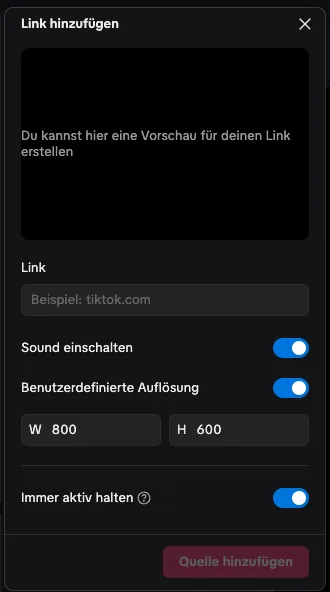
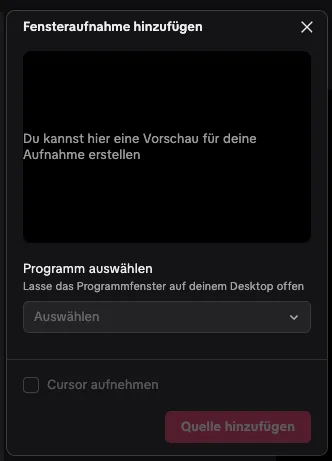
The link source is the quickest to set up: paste the game link, set 1080 × 1920, done. But it runs inside LIVE Studio and can stutter with 3D games or on weaker computers. Window capture records a normal browser window and often runs more smoothly, but needs an open window and a bit of cropping. Start with the link source and switch to window capture if it stutters.
- Link source: quick to set up, all inside LIVE Studio, ideal for 2D games.
- Window capture: often smoother, ideal for 3D games and weaker computers.
- With window capture, never minimise the window.
- Always use the game link from the Control Center, not the browser address.
Contents
The two options at a glance
A browser game gets into TikTok LIVE Studio in two ways. With a link source, LIVE Studio opens the game page itself in a built-in browser. With window capture, the game runs in your normal browser and LIVE Studio records that window. Both show your viewers the same game.
| Link source | Window capture | |
|---|---|---|
| Setup | Paste the link, set the resolution | Pick the window, crop, fit |
| Performance | Runs in LIVE Studio’s built-in browser | Runs in your normal browser, often with better graphics acceleration |
| Picture | Exactly 1080 × 1920, no border | Depends on window size and cropping |
| Sound | Adjustable right at the source | Via system audio or window audio |
| Risk | Stutter in 3D games | Black picture if the window is minimised |
When the link source is better
For 2D games, arcade and puzzles, the link source is the easiest choice. You need no extra window, nothing can shift, and the picture always has the right format. Switch on “Keep active” so the game keeps running when you briefly switch to another scene. Games like Jumper or TikQuest run smoothly this way on most computers.
When window capture is better
With 3D games full of movement, such as ChaosWorld or TikZomb, the game often runs more smoothly in your normal browser. The browser usually uses the graphics card better than LIVE Studio’s built-in browser. Open the game window from the Control Center, make it roughly portrait-shaped and capture it with “Window capture”. “Crop” removes borders, and “Fit” makes the game fill the frame.
Our recommendation
- Start with the link source. It’s done in two minutes.
- Test a few gifts in the simulator and watch for stutter and dropped frames.
- If it stutters, switch to window capture and compare.
- Stick with whichever runs more smoothly for you. You don’t need both sources at once.

Avoid the usual mistakes
- Don’t copy the address from the browser bar into the link source. It shows menus and the Control Center. Use the game link from the Control Center.
- Don’t minimise the window when using window capture, or the picture turns black. Move it to a second screen or behind LIVE Studio instead.
- Don’t capture the sound twice. If you use window capture, mute or delete an old link source.
The whole setup step by step is in How to Add Interactive Games to TikTok LIVE Studio.
Games for your LIVE


Frequently asked questions
Which is better, window capture or link source?
The link source is quicker to set up and is enough for most 2D games. With 3D games or weaker computers, window capture often runs more smoothly.
Why does my game stutter as a link source?
LIVE Studio’s built-in browser often uses the graphics card less well. Switch to window capture or lower the frame rate in the Control Center.
Why is my window capture black?
The window is minimised, or on a Mac the screen recording permission is missing. Keep the window open and check the permission in System Settings.
Can I use both options at the same time?
Technically yes, but it doesn’t make sense. Two sources cost twice the performance and capture the sound twice. Pick whichever runs more smoothly.