TikTok LIVE Studio: How to Add, Arrange and Layer Sources

In short
In TikTok LIVE Studio, you add a source with the “Add source” button at the bottom left. Pick the type, for example camera, window capture or link, set it up in the dialog and confirm. The new source sits at the top of the list. Drag it down if it should sit behind your camera and overlays.
- “Add source” at the bottom left opens the list of all source types.
- Top of the list means front of the picture. The game goes at the bottom.
- “Fit” makes a source fill the whole portrait frame.
- Separate scenes for gameplay, breaks and chatting save you lots of clicks during your LIVE.
Contents
What is a source in TikTok LIVE Studio?
A source is anything your viewers see or hear in your LIVE: your camera, a program window, an image, a text or a web page via a link. LIVE Studio stacks sources like transparent sheets. Whatever is at the top of the list sits in front. These layers make up your scene, which viewers watch in portrait format.
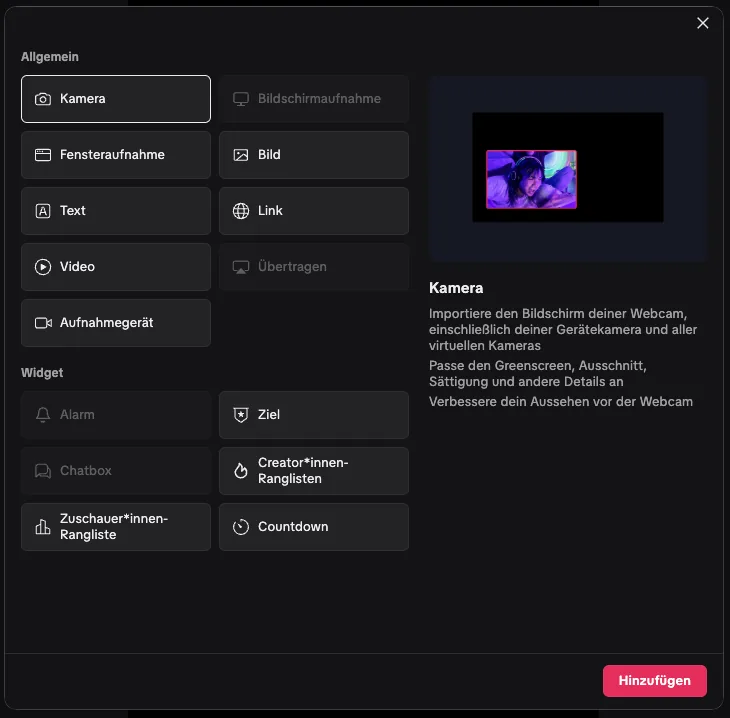
Which sources are there?
| Source | What for | Tip |
|---|---|---|
| Camera | Your face, the facecam | Place it over the game, in the free spot of the layout |
| Window capture | A single program, such as the browser running the game | Keep the window open, never minimise it |
| Screen capture | The whole monitor | Also shows notifications, so prefer window capture |
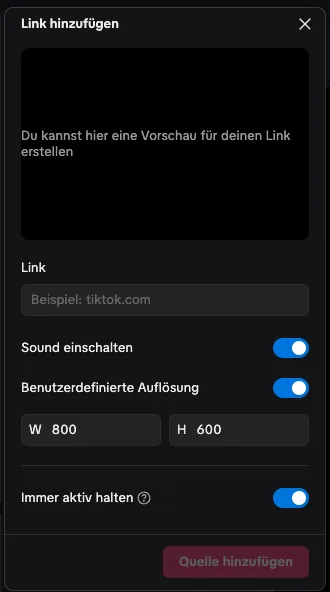
| Link | A web page directly in LIVE Studio, such as an interactive game or an overlay | Set the resolution to 1080 × 1920 |
| Image and text | Logo, break screen, notes | Keep them small and don't cover anything important |
Tile names can change slightly with new versions. You always open the list with “Add source”.
How to add a source
- In LIVE Studio, click “Add source” at the bottom left.
- Pick the type, for example “Link” for a browser game or “Camera” for your facecam.
- Set up the source in the dialog: paste the link, pick the camera or choose the program.
- Confirm with “Add source”. The source appears at the top of the list.
- Select it and choose “Fit” in the toolbar if it should fill the whole frame.
- Drag the source to the right place in the list: game at the bottom, camera and overlays above it.
The right order of layers
For an interactive game, this order works well, from top to bottom:
- Notes and alerts, for example a text-to-speech overlay
- Your camera
- The game as a link source or window capture
The game brings its own gift tiles and banners. So place your camera where the layout in the Control Center leaves space. In TowerClimb and the other games on TikArena, you choose there whether the facecam sits at the top, at the bottom or not at all.

Scenes for gameplay, breaks and chatting
A scene is a ready-made set of sources. Create at least two: a game scene with the game and a small camera, and a chat scene with a large camera. During your LIVE you switch with one click. The game keeps running in the link source as long as “Keep active” is switched on.
Lock, rename and hide sources
- Give every source a clear name like “Game” or “Facecam”. That makes it faster to find during your LIVE.
- Lock finished sources so you can't move them by accident.
- Hide a source with the eye icon instead of deleting it. Its settings stay.
How to add a game as a source step by step is in How to Add Interactive Games to TikTok LIVE Studio. Whether a link source or window capture suits it better is compared in Window Capture or Link Source.
Games for your LIVE


Frequently asked questions
Where is “Add source” in TikTok LIVE Studio?
At the bottom left of the LIVE Studio main window, below your list of sources. The button opens the list of all source types.
Why can’t I see my new source?
Usually another source sits in front of it, such as the game. Drag the source higher up the list or briefly hide the source covering it.
How do I make a source fill the whole frame?
Select the source and choose “Fit” in the toolbar. For a link source, set the resolution to 1080 × 1920 first.
How many sources can I add?
TikTok doesn’t name a fixed limit. But every link source and every capture costs computing power, so only use the sources you really need.