Streaming Games with TikTok LIVE Studio: PC Games on TikTok LIVE, Step by Step

In short
To stream games with TikTok LIVE Studio, start your game, add a window capture of it in LIVE Studio via “Add source” and place your camera on top. Because TikTok is watched in portrait, you set under Settings, Video how your landscape picture appears in portrait. Then check audio and picture and go live with “Go LIVE”.
Contents
What you need
- A Windows PC or Mac that can handle the game and the stream at the same time.
- TikTok LIVE Studio and an account with LIVE access. What that takes is in TikTok LIVE Requirements.
- A webcam and a microphone; a headset is enough to start.
- A stable upload connection, ideally wired.
The three ways to get a game into LIVE Studio
Depending on what you want to stream, you use a different source in LIVE Studio:
- Link source: for browser games and interactive games from marketplaces like TikArena. Quick to set up, but it can stutter depending on your internet, your PC's power and the provider's servers.
- Window or screen capture: for PC games, launcher games and browser games in their own window. You crop the picture to portrait format. Many streamers prefer this way, because it often runs more smoothly.
- Capture card: for console games from PlayStation, Xbox or Switch. The card brings the console's picture onto your PC, and in LIVE Studio you select it as a video source.
Guide: streaming a PC game with TikTok LIVE Studio
- Start the game. Open the game you want to show and run it in windowed or borderless mode.
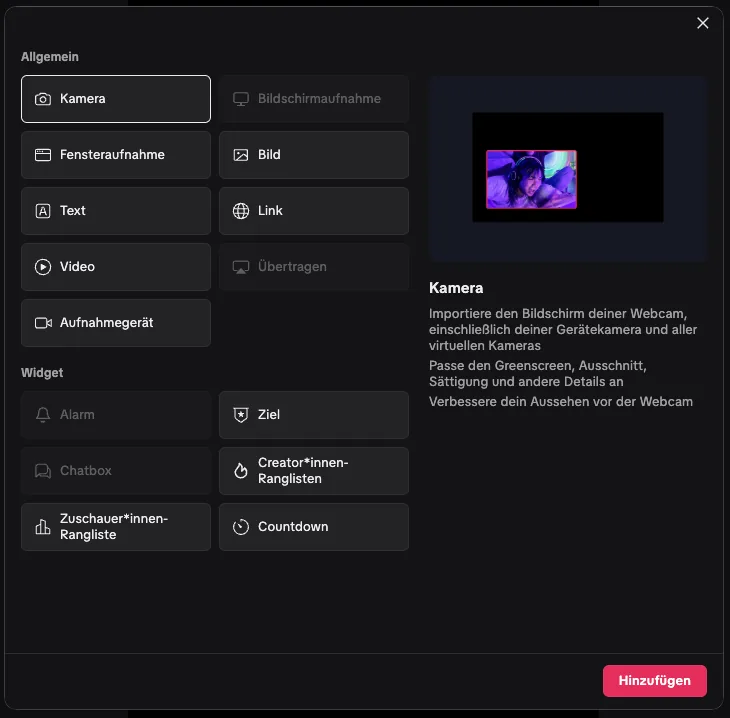
- Add a source. In LIVE Studio, click “Add source” at the bottom left and choose “Window capture”.
- Pick the game. Under “Select program”, choose your game’s window and click “Add source”.
- Add the camera. Add the “Camera” via “Add source” and drag it to a spot that doesn’t cover anything important in the game.
- Check the audio. In the toolbar at the bottom, set game sound and microphone. Your voice should sit clearly above the game.
- Go LIVE. Give your LIVE a title and click “Go LIVE”.
Showing a landscape game in portrait
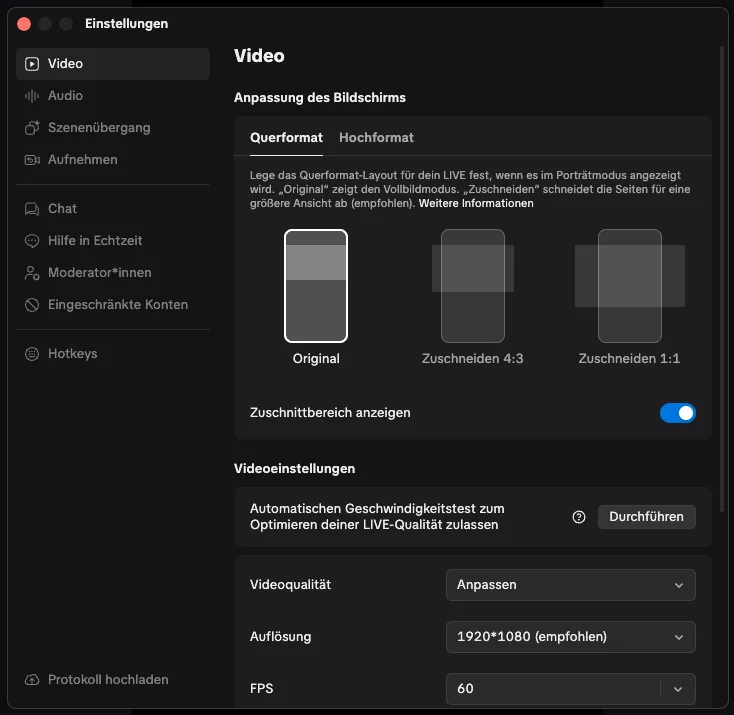
Most PC games run in landscape, but TikTok is watched in portrait. In LIVE Studio, under Settings, Video, “Screen adjustment”, you choose how your picture appears on phones: “Original” shows the whole picture small, while “Crop 4:3” and “Crop 1:1” cut off the sides and show the middle larger. For games with the action in the centre, cropping is usually better.
Alternatively, switch the studio view at the top left to portrait and build your own layout: camera at the top, game in the middle, room for prompts to the chat at the bottom.
The best video settings
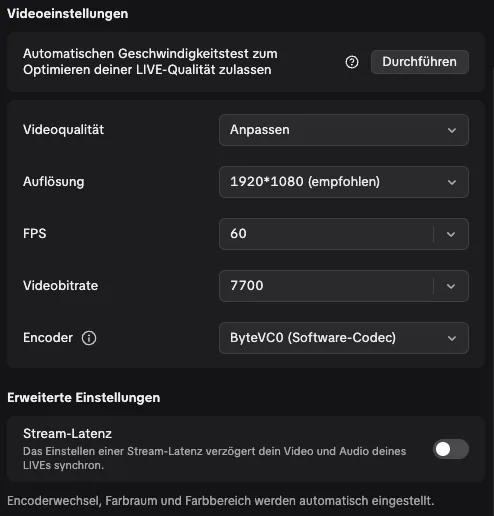
1920 × 1080 resolution and 60 FPS work well. As the encoder, LIVE Studio offers ByteVC0 (software codec) among others. If your upload is weaker, lower the video bitrate or switch to 30 FPS. Below the canvas, LIVE Studio shows CPU, upload and dropped frames. If dropped frames rise, either your upload or your computer is at its limit. What to change then is explained in TikTok LIVE Studio Settings.
Getting the chat involved
A gaming stream on TikTok lives on new viewers quickly understanding what’s happening and being able to join in. Read comments aloud, let the chat vote on the next decision and say thanks for gifts. It gets even more direct with an interactive game where the chat plays along with gifts. LIVE Studio has a few free games of its own for that (as of late 2026), and there's more choice on marketplaces like TikArena or Scrollplay. Bought Steam games can be linked to gifts with plugins like Stream to Earn. You add browser games as a link source or via window capture: How to Add Interactive Games to TikTok LIVE Studio.
Games for your LIVE


Common problems
| Problem | Solution |
|---|---|
| Black picture in window capture | Run the game in windowed or borderless mode, not exclusive fullscreen. |
| Game stutters on stream | Lower bitrate or FPS, close other programs. With link sources, switch to window capture. |
| No game sound | Check the source volume in the toolbar and in the audio settings. |
| Picture too small on phones | Choose “Crop” under Video or build the portrait layout yourself. |
More help with LIVE Studio is available in Fixing TikTok LIVE Studio Problems and directly from TikTok in the LIVE Studio help and the Creator Academy.
Frequently asked questions
How do I stream a PC game with TikTok LIVE Studio?
Start the game, choose “Add source” and “Window capture” in LIVE Studio and select the game window. Add your camera, check the audio and click “Go LIVE”.
Why is the game picture black in LIVE Studio?
Usually the game runs in exclusive fullscreen. Switch it to windowed or borderless mode so LIVE Studio can capture the window.
How do I show a landscape game in portrait on TikTok?
Choose “Crop 4:3” or “Crop 1:1” under Settings, Video, or build your own portrait layout in the studio view.
What are good settings for TikTok LIVE Studio?
1920 × 1080 and 60 FPS work well. With a weak upload, lower the video bitrate or use 30 FPS.