TikTok LIVE in 9:16 Portrait Mode: How to Set Up LIVE Studio and OBS
In short
TikTok is watched on phones, so you stream in 9:16 portrait mode, which is 1080 × 1920 pixels. In TikTok LIVE Studio the canvas is upright for this, and you only give the game source the size 1080 × 1920. In OBS you also set the canvas and output to 1080 × 1920. Black bars almost always appear when source and canvas do not have the same format.
Contents
Why portrait mode for TikTok LIVE?
Almost all viewers watch your LIVE on a phone, held upright. A landscape picture gets small there, with wide bars above and below. In 9:16 portrait mode your stream fills the whole screen. That is why interactive games like the ones on TikArena are built for 1080 × 1920 from the start.
| Setting | Portrait mode for TikTok |
|---|---|
| Aspect ratio | 9:16 |
| Game source resolution | 1080 × 1920 |
| OBS canvas | 1080 × 1920 |
| OBS output | 1080 × 1920 |
Portrait mode in TikTok LIVE Studio
In LIVE Studio you see the canvas in the middle. For TikTok it should be upright. To make the game fill it exactly, give the source the matching format:
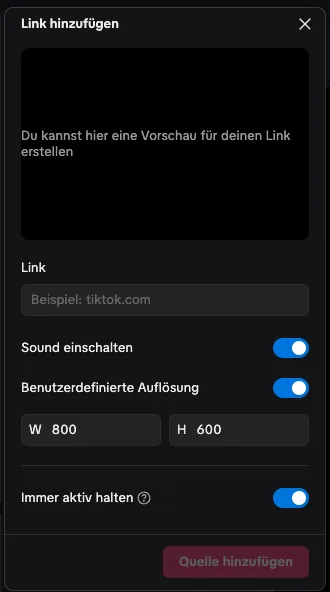
- Click “Add source” at the bottom left and choose “Link”.
- Paste the game link from the Control Center.
- Switch on “Custom resolution” and enter 1080 × 1920. By default it says 800 × 600, which leaves borders.
- Select the source and choose “Fit” if a border remains.
If you capture the game with window capture, drag the browser window into a roughly upright shape, crop it to the game with “Crop” and choose “Fit”. Which option runs more smoothly is explained in Window Capture or Link Source.
Portrait mode in OBS
OBS starts in landscape. Under Settings, Video, set both the base (canvas) resolution and the output resolution to 1080 × 1920. Then add the browser source with width 1080 and height 1920. The full setup step by step is in TikTok Live Games in OBS.
Placing your facecam in portrait mode
Portrait mode leaves little space. So don't just drop the camera in a corner, put it where the layout in the Control Center leaves room. There you choose whether the facecam sits at the top, at the bottom or not at all. That way it covers neither gift tiles nor banners.
Common mistakes and fixes
| Problem | Cause | Fix |
|---|---|---|
| Black bars left and right | Source in landscape | Set the source to 1080 × 1920 |
| Distorted picture | Source stretched instead of fitted | Select the source, choose “Fit” |
| Game too small with a border | 800 × 600 as source size | Custom resolution 1080 × 1920 |
| Everything landscape in OBS | Canvas still at 1920 × 1080 | Set canvas and output to 1080 × 1920 |
| Facecam covers actions | Camera not in the free spot | Pick a layout in the Control Center and place the camera there |
If the picture stutters even with the right format, the values in TikTok LIVE Studio Settings: Video Quality and FPS help.
Games for your LIVE


Frequently asked questions
What format is a TikTok LIVE?
9:16 portrait. For a sharp picture use 1080 × 1920 pixels for the canvas and the game source.
How do I set TikTok LIVE Studio to portrait mode?
The canvas in the middle should be upright. Give the game source 1080 × 1920 via “Custom resolution” and choose “Fit” if needed.
How do I stream to TikTok in portrait mode with OBS?
Under Settings, Video, set canvas and output to 1080 × 1920 and add the browser source at 1080 × 1920 as well.
Why do I have black bars in my TikTok LIVE?
Source and canvas do not have the same format, usually because the source is still landscape or 800 × 600. Set it to 1080 × 1920.